What This Page Is For
The Promotional Page Editor lets you build a standalone page by stacking widgets vertically with the focus on harnessing the Dynamic Listing Widgets — the fastest way to add live accommodation, activities, or deals to a promotional page.
Creating a Promotional Page (Quick)
Log in to the CMS
Go to Pages → Custom Page
Click Create Dynamic Custom Page
Enter a Title (permalink is auto-generated on first publish and cannot be changed)
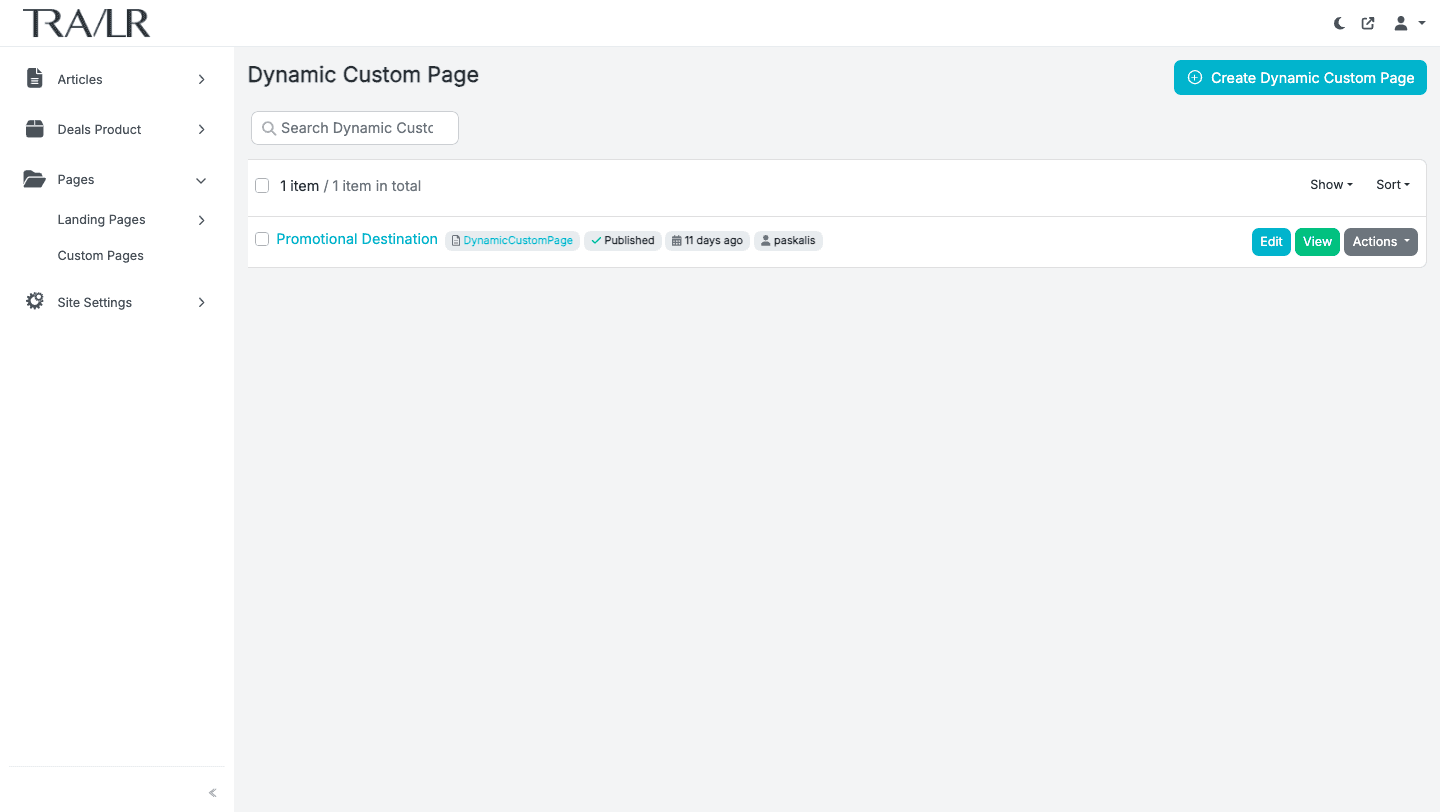
Dynamic Custom Page Dashboard Interface
Adding a Dynamic Listing Widget
Click the “+” button in the editor
Select one of the Dynamic Listing Widgets:
Accommodation Search Widget
Activity Search Widget
Deal Search Widget
All three widgets use the same configuration interface. Please see screenshot.
Configuring the Widget
Required Fields
Each widget requires:
Header
Sub-header
CTA text
CTA URL
Step 1: Select a Destination
Enter a country, region, or city
Select ONE destination only per widget
Step 2: Choose How Listings Are Populated
Option A: Automatic Listings (Recommended)
Leave the listing field empty.
Configure:
Items shown per page & Maximum items shown
Price range currency
Sort order (Recommended, Min Price, Max Price)
Option B: Manual Listing Selection
Search listings by name
Select listings from results
Repeat to feature multiple listings
Callout: Availability
Listings without availability will not appear on the front end.
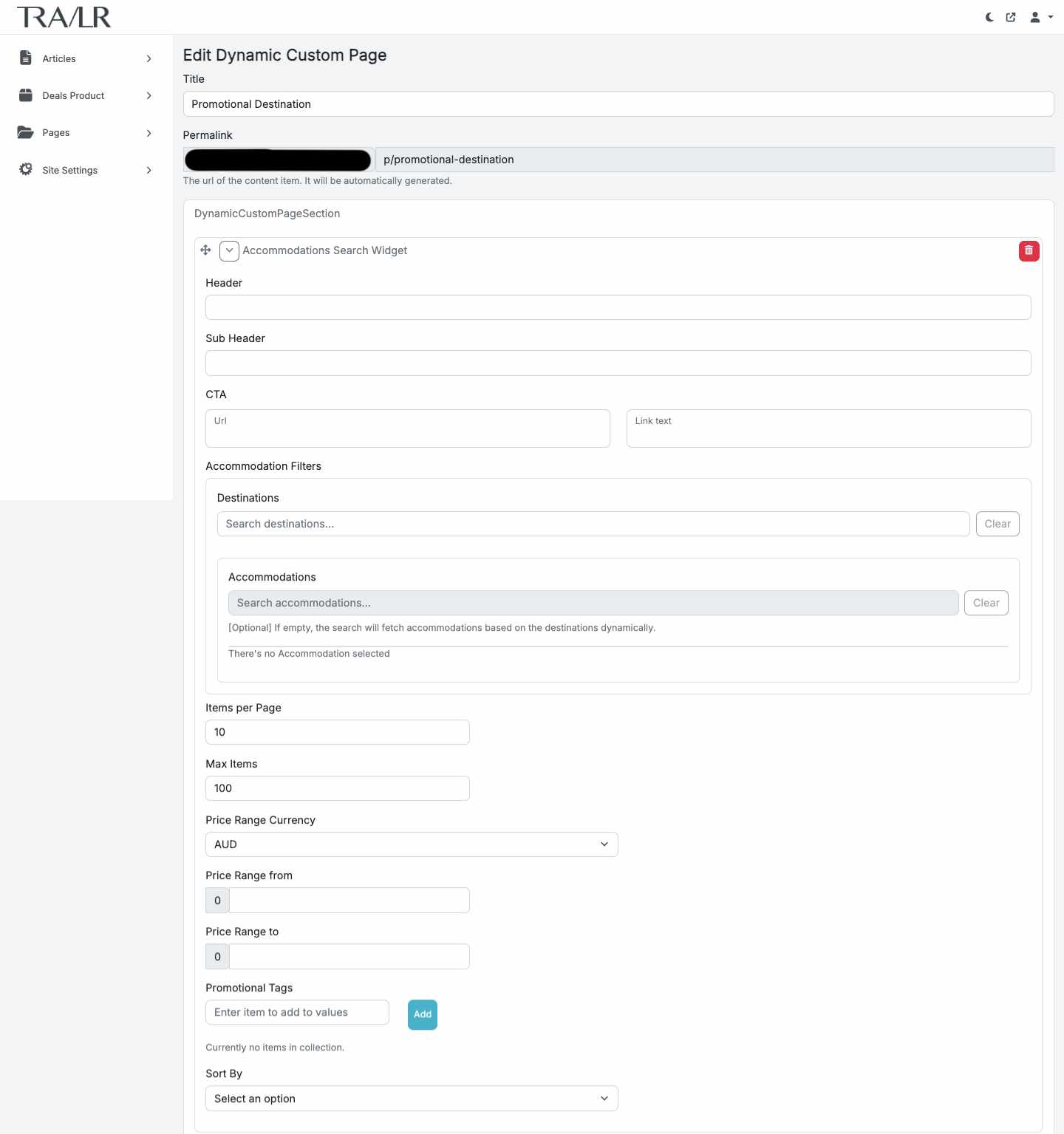
Dynamic Search Widget Interface
Combining Widgets
Promotional pages are built as a vertical stack. You can:
Reorder widgets by dragging
Add the same widget multiple times
Mix dynamic widgets with existing Layer Widgets (Please see the Layer Widget guides here).
Publish Options
View: Preview the page in a new tab
Publish: Publish and return to dashboard
Publish and Continue: Publish and keep editing
Managing Promotional Pages
From the Custom Page dashboard you can:
Edit
View
Unpublish
Delete
Clone